Filament: Enforce Image Aspect Ratios on FileUpload (with Auto-Crop)
2026-04-15 Filament v4/5Your design requires banner images at exactly 16:9 and avatars at 1:1? You upload a photo, Filament rejects it with a validation error, and now the user has to go crop it externally and re-upload. There's a better way: let Filament open a cropper automatically so users can fix the ratio before saving.
This tutorial covers three approaches to enforcing aspect ratios on FileUpload: validation-only, auto-open cropper, and fully automatic crop without user interaction.
Option 1: Validation Only
The simplest approach. Add imageAspectRatio() and Filament will reject images that don't match:
app/Filament/Resources/Events/Schemas/EventForm.php
use Filament\Forms\Components\FileUpload; FileUpload::make('banner_image') ->image() ->maxSize(2048) ->imageAspectRatio('16:9') ->directory('events/banners'), FileUpload::make('avatar') ->image() ->maxSize(1024) ->imageAspectRatio('1:1') ->directory('events/avatars'),Upload a 800x600 image to the banner field and you'll get a validation error. The image is rejected, not cropped. The user has to open an external tool, crop it to exactly 16:9, and re-upload. Most users won't know what "aspect ratio" even means.
Option 2: Auto-Open Cropper
The better approach for most cases. Combine imageAspectRatio() with automaticallyOpenImageEditorForAspectRatio():
app/Filament/Resources/Events/Schemas/EventForm.php
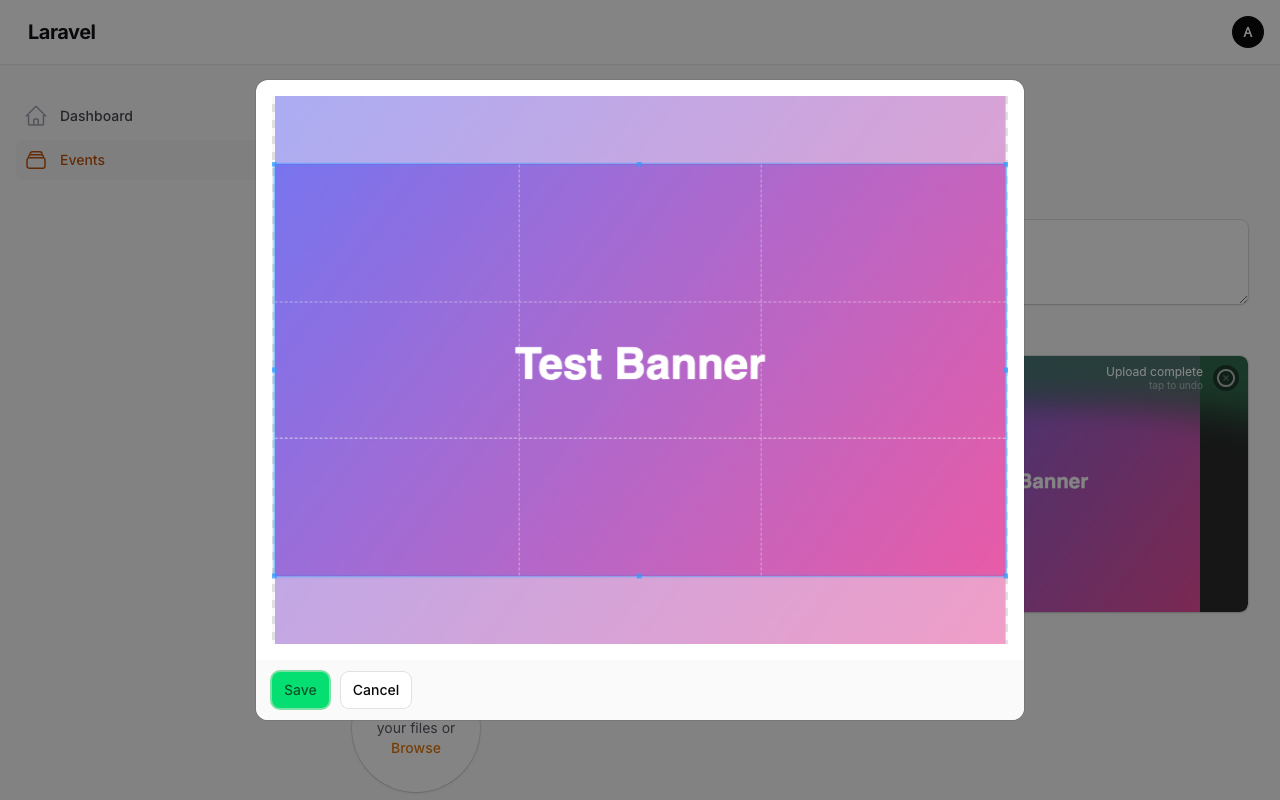
use Filament\Forms\Components\FileUpload; FileUpload::make('banner_image') ->image() ->maxSize(2048) ->imageAspectRatio('16:9') ->automaticallyOpenImageEditorForAspectRatio() ->directory('events/banners'), FileUpload::make('avatar') ->image() ->maxSize(1024) ->imageAspectRatio('1:1') ->avatar() ->automaticallyOpenImageEditorForAspectRatio() ->directory('events/avatars'),Now when a user uploads an image that doesn't match the required ratio, Filament automatically opens a simplified crop editor locked to that ratio. The user drags the crop area, hits save, and the image passes validation.
If the uploaded image already matches the ratio, no editor appears. It just uploads normally.
The simplified editor only shows the crop area and save/cancel buttons. If you want users to also rotate and reposition, enable the full image editor alongside it:
FileUpload::make('banner_image') ->image() ->maxSize(2048) ->imageEditor() ->imageAspectRatio('16:9') ->automaticallyOpenImageEditorForAspectRatio() ->directory('events/banners'),Option 3: Fully Automatic Crop (No Editor)
If you don't want user interaction at all, use automaticallyCropImagesToAspectRatio(). This crops the image silently on the client side before uploading:
FileUpload::make('banner_image') ->image() ->maxSize(2048) ->imageAspectRatio('16:9') ->automaticallyCropImagesToAspectRatio() ->directory('events/banners'),The crop happens from the center. The user has no control over which part of the image is kept. This is fine for generic banners but risky for portraits or images where framing matters.
Which Approach to Use
- Validation only (
imageAspectRatio()) when you're dealing with technical users who prepare images beforehand, or when you accept multiple ratios via an array like['16:9', '4:3']. - Auto-open cropper (
automaticallyOpenImageEditorForAspectRatio()) for most admin panels. It gives users control without forcing them to use external tools. This is the recommended default. - Automatic crop (
automaticallyCropImagesToAspectRatio()) for fields where framing doesn't matter, like background textures or placeholder images.
You can combine automaticallyCropImagesToAspectRatio() with automaticallyResizeImagesToWidth() and automaticallyResizeImagesToHeight() if you also need to control the output dimensions, not just the ratio.
A few of our Premium Examples: